使用 Fuse.js 给 Nuxt 博客添加文档检索
1. 背景
之前工作的时候,遗留的老项目中,有看到使用 nuxt ui pro 的搜索组件。但是 nuxt ui pro 是收费组件,项目交接给我的时候, token 实效,不能再使用了,打包部署不上去,后续是 LD 准备淘宝上买个共用的 token ,先打包部署上去再说。
我对文档检索这个功能,之前只知道 algolia ,但是 algolia 是付费的,虽然个人是申请免费使用。不过我看 nuxt ui pro 的文档检索组件,明显不是使用 algolia 的,所以好奇心驱使,想看看 nuxt ui pro 的文档检索组件是怎么实现的。
然后在 nuxt content theme 中,还有这个 nuxt 的博客主题 bloggrify 中,看到了使用 Fuse.js 的实现方式,才开始了解了一下 Fuse.js 。
2. 读示例代码
在阅读了 bloggrify AppSearch.vue 组件源码后,发现其实 Fuse.js 的使用,并不复杂,
可以简单理解为,先初始化,然后 return 出来的就是结果。
          const { results } = useFuse<PostlySearchResult>(
  queryText, // 搜索关键词
  files as any, // 数据数组
  props.fuse, // 初始化 Fuse.js 的配置
)
如上代码所示,就是这么简单。
3. 了解 Fuse.js
之前只知道 algolia ,非常强大,但是需要个人申请免费使用,而且需要调用服务器,不过非常好用,一行代码引入就可以实现文档检索。
这次知道 Fuse.js ,感觉也挺好用,就跟调用接口检索一样,但是检索的时候不需要调用远程服务器,相当于拿到所有数据存到本地了。
Fuse.js 是一个轻量级的模糊搜索库:
- 零依赖:不需要依赖其他库
- 强大的模糊搜索:支持近似字符串匹配
- 灵活的搜索选项:可以自定义搜索模式和权重
- 支持在浏览器和 Node.js 环境中使用
- 支持对复杂 JSON 对象的搜索
功能配置项很强大,在代码中也很好集成。
从 Vueuse Fuse Demo 这个示例中,可以简单尝试一下。
4. 实现博客文档检索
首先,在以下这几个前提下,所以我才用下面的步骤使用 Fuse.js 来实现博客文档检索。
- 博客是 Nuxt 开发的
- 使用了 Nuxt Content 来渲染 markdown 文件
- 使用了 Vueuse 库
在这些前提下,集成 Fuse.js 异常简单,毕竟 Vueuse 都给出了上面的 Demo 。
不过 Fuse.js 其实就是相当于一个检索,而具体的检索方式和检索结果的展示,需要自己来实现。 所以要想实现一个完整的文档检索组件,还需要一些其他功能,可以参考一些别的组件库。
比如: shadcn-vue command 这个组件。
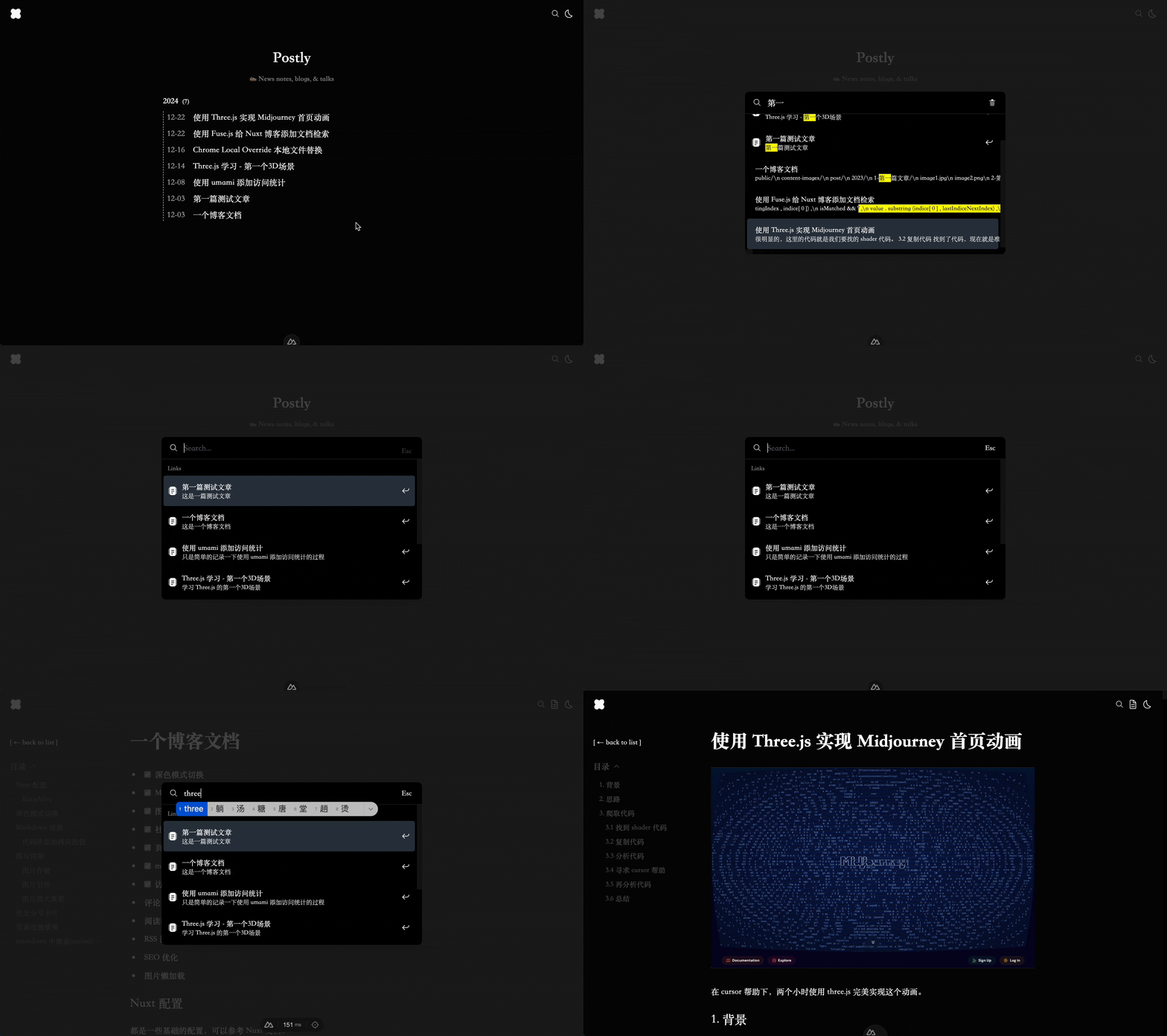
- 检索输入框
- 结果展示列表
- 上下按键选中,回车确认
- cmd + k 快捷键打开,Esc 关闭
- 搜索结果高亮
- focus 聚焦选中和关闭
4.1 思路
首先功能上来说,核心是检索,然后才是页面和交互。
所以,先从检索开始。Nuxt 中,使用的是 Nuxt Content 来渲染 markdown 文件,所以 queryContent 这个方法,就可以获取到所有的 markdown 文件。那这样的话,数据直接不费劲就获取到了。
          const { data: files } = await useLazyAsyncData('appSearch', async () => {
  // 获取所有文章
  const articles = await queryContent('/post').find()

  const result = articles.map((article: any) => {
    return {
      id: article._path,
      path: article._path,
      title: article.title,
      description: article.description,
      body: extractTextFromAst(article.body) || '',
      date: article.date,
    }
  })

  return result
})
这里的 useLazyAsyncData 和 queryContent 都是 Nuxt 提供的,所以可以直接使用。而 extractTextFromAst 这个方法,是将获取到的 AST 结构,转换为纯文本,直接一个遍历就行。
          // 从 AST 中提取文本
function extractTextFromAst(node: { type: string, value: string, children: any[] }) {
  let text = ''
  if (node.type === 'text') {
    text += node.value
  }
  if (node.children) {
    for (const child of node.children) {
      text += ` ${extractTextFromAst(child)}`
    }
  }
  return text
}
上面轻松能获取到数据,所以下面我们开始在 Nuxt 中集成 Fuse.js 。
- 下载
@vueuse/integrations库,在 nuxt 中只需要 install 就可以直接 import 使用了,因为之前在nuxt.config.ts中配置过了@vueuse/nuxt。
pnpm install @vueuse/integrations
- 在
components/AppSearch.vue中,引入useFuse方法。
          import { useFuse } from '@vueuse/integrations/useFuse'
import type { UseFuseOptions } from '@vueuse/integrations/useFuse'
- 研究一下 Fuse.js 的配置项,具体可以看官网文档,这里我们简单设置几个。
          const { results } = useFuse<PostlySearchResult>(
  queryText,
  files as any,
  {
    fuseOptions: {
      keys: [
        'title',
        'description',
        'date',
        'body',
      ],
      ignoreLocation: true,
      threshold: 0,
      includeMatches: true,
      includeScore: true,
    },
    matchAllWhenSearchEmpty: true,
  },
)
这里其实就初始化好了,其中useFuse 是通过 vueuse 集成的,里面的参数 queryText 是检索的关键词,files 是检索的数据,第三个 是 Fuse.js 的配置项,而 result 则是返回的检索结果。
就是这么简单。
4.2 页面和交互
这里的页面其实比较简单就略过了,因为跟着设计走。
交互其中有个 focus trap 之前是没有关注到的,所以这里也研究了一下加上了。就是按 tab 键的切换,其实也很简单,看代码就能理解。
然后就是检索结果的展示,hover focus 和 上下按键选中的效果,可能会有点冲突。所以我们直接依靠变量来判断,然后通过 class 来实现。不直接设置 hover ,可能会鼠标和按键同时操作,造成了视觉影响。
          <NuxtLink
  v-for="(result, i) in results"
  :id="result.item.id"
  :key="result.item.id"
  :to="result.item.path"
  class="
    relative select-none rounded-sm outline-none
    py-3 px-2 gap-2
    flex flex-row items-center
    focus:bg-[var(--app-hover)]
  "
  :class="{ 'bg-[var(--app-hover)]': selected === i }"
  @mouseenter.prevent="selected = i"
  @click="show = false"
>
</NuxtLink>
4.3 所有代码
          <script setup lang="ts">
import type { UseFuseOptions } from '@vueuse/integrations/useFuse'
import { useFocusTrap } from '@vueuse/integrations/useFocusTrap'
import { useFuse } from '@vueuse/integrations/useFuse'

interface PostlySearchResult {
  id: string
  path: string
  dir: string
  title: string
  description: string
  body?: any[]
  date: string
}

const props = defineProps({
  fuse: {
    type: Object as PropType<Partial<UseFuseOptions<PostlySearchResult>>>,
    default: () => ({
      fuseOptions: {
        keys: [
          'title',
          'description',
          'date',
          'body',
        ],
        ignoreLocation: true,
        threshold: 0,
        includeMatches: true,
        includeScore: true,
      },
      matchAllWhenSearchEmpty: true,
    }),
  },
})

const queryText = ref('')
const searchContentRef = ref<HTMLDivElement>()
const resultsAreaRef = ref<HTMLDivElement>()

const show = ref(false)

const { activate, deactivate } = useFocusTrap(searchContentRef)

const { data: files } = await useLazyAsyncData('appSearch', async () => {
  // 获取所有文章
  const articles = await queryContent('/post').find()

  const result = articles.map((article: any) => {
    return {
      id: article._path,
      path: article._path,
      title: article.title,
      description: article.description,
      body: extractTextFromAst(article.body) || '',
      date: article.date,
    }
  })

  return result
})

// 初始化 Fuse.js 检索
const { results } = useFuse<PostlySearchResult>(
  queryText,
  files as any,
  props.fuse,
)

// 高亮搜索结果
function highlight(
  text: string,
  result: any,
): string {
  const { indices, value }: { indices: number[][], value: string } = result || { indices: [], value: '' }

  if (text === value)
    return ''

  let content = ''
  let nextUnhighlightedIndiceStartingIndex = 0

  indices.forEach((indice: any[]) => {
    const lastIndiceNextIndex = indice[1] + 1
    const isMatched = (lastIndiceNextIndex - indice[0]) >= queryText.value.length

    content += [
      value.substring(nextUnhighlightedIndiceStartingIndex, indice[0]),
      isMatched && '<mark>',
      value.substring(indice[0], lastIndiceNextIndex),
      isMatched && '</mark>',
    ].filter(Boolean).join('')

    nextUnhighlightedIndiceStartingIndex = lastIndiceNextIndex
  })

  content += value.substring(nextUnhighlightedIndiceStartingIndex)

  const index = content.indexOf('<mark>')

  if (index > 60) {
    content = `${content.substring(index - 60)}`
  }

  return `${JSON.stringify(content)}`.slice(1, -1)
}

// 关闭搜索
function handleClose() {
  if (queryText.value) {
    queryText.value = ''
  }
  else {
    show.value = false
  }
}

onKeyStroke('k', (e) => {
  if (e.metaKey && !e.repeat) {
    e.preventDefault()
    show.value = !show.value
  }
}, { passive: false })

onKeyStroke('Escape', (e) => {
  if (show.value) {
    e.preventDefault()
    show.value = false
  }
}, { passive: false })

const selected = ref(-1)

// 向上选择
function handleUp() {
  if (selected.value === -1) { selected.value = results.value.length - 1 }
  else if (selected.value === 0) { /* Do nothing */ }
  else { selected.value = selected.value - 1 }
}

// 向下选择
function handleDown() {
  // 如果未选择,则选择第一个
  if (selected.value === -1) { selected.value = 0 }
  // 如果已经选择最后一个,则不选择
  else if (selected.value === results.value.length - 1) { /* Do nothing  */ }
  // 否则,选择下一个
  else { selected.value = selected.value + 1 }
}

// 选择项目
function handleGo() {
  const selectedItem = results?.value?.[selected.value]?.item
  const path = selectedItem?.path

  if (path) {
    show.value = false
    useRouter().push(path)
  }
}

// 滚动到选中的项目
watch(selected, (value) => {
  const nextId = results?.value?.[value]?.item?.id
  if (nextId) {
    document.querySelector(`[id="${nextId}"]`)
      ?.scrollIntoView({ block: 'nearest' })
  }
})

// 搜索框清空时,重置选中项目
watch(
  queryText,
  (_) => { selected.value = 0 },
)

// 监听 show 的变化来控制 body 的滚动
watch(show, (value) => {
  if (value) {
    // 阻止 body 的滚动
    document.body.classList.add('overflow-hidden')

    // 延迟激活 focus trap,以确保 body 的滚动被阻止
    nextTick(() => {
      activate()
    })
  }
  else {
    selected.value = -1
    document.body.classList.remove('overflow-hidden')
    deactivate()
  }
})
// 组件卸载时确保移除类名
onUnmounted(() => {
  document.body.classList.remove('overflow-hidden')
})

// 从 AST 中提取文本
function extractTextFromAst(node: { type: string, value: string, children: any[] }) {
  let text = ''
  if (node.type === 'text') {
    text += node.value
  }
  if (node.children) {
    for (const child of node.children) {
      text += ` ${extractTextFromAst(child)}`
    }
  }
  return text
}
</script>

<template>
  <button
    aria-label="Search"
    class="
      !outline-none flex flex-row justify-center items-center
      hover:scale-110 transition-all duration-300
    "
    @click="show = true"
  >
    <div class=" i-carbon-search" />
  </button>

  <teleport to="body">
    <div
      v-if="show"
      ref="searchContentRef"
      class="fixed inset-0 overflow-y-auto z-50"
    >
      <nav
        class="
          min-h-full w-full
          flex items-center justify-center
          bg-[color-mix(in_srgb,var(--app-muted)_80%,transparent)]
          p-0 sm:p-4
        "
        @click="show = false"
      >
        <div
          class="
            relative
            bg-[var(--app-primary)]
            w-full max-w-lg overflow-hidden
            h-dvh sm:h-[20rem]
            rounded-none shadow-none sm:rounded-lg sm:shadow-xl
            my-0
            flex flex-col
          "
          @click.stop
        >
          <div
            class="
              flex flex-row items-center
              w-full h-14 sm:h-11
              py-3 px-4 flex-shrink-0
              border-b
              border-[var(--app-muted)]
            "
          >
            <div class=" i-carbon-search" />
            <input
              id="app-search-input"
              v-model="queryText"
              type="text"
              placeholder="Search..."
              autocomplete="off"
              autofocus
              class="
                placeholder:opacity-60 placeholder:font-light
                w-full h-full outline-none flex-1 px-3
                bg-transparent
              "
              required
              @keydown.up.prevent="handleUp"
              @keydown.down.prevent="handleDown"
              @keydown.enter="handleGo"
            >
            <button
              aria-label="Close Modal Button"
              class="
                flex items-center justify-center
                transition-all duration-300
                rounded-sm  min-w-5 min-h-5
                hover:bg-[var(--app-hover)]
                focus:bg-[var(--app-hover)]
              "
              @click="handleClose"
            >
              <Transition name="slide-up" mode="out-in">
                <span v-if="queryText" class="i-solar-trash-bin-minimalistic-2-bold-duotone " />
                <!-- <span v-else class=" i-carbon-close text-xl " /> -->
                <span v-else class="text-sm rounded-sm px-1">Esc</span>
              </Transition>
            </button>
          </div>

          <div
            ref="resultsAreaRef"
            aria-label="results"
            class="flex-1 w-full p-1 overflow-y-auto"
          >
            <div class="px-2 py-1.5 text-xs font-medium opacity-60">
              Links
            </div>

            <NuxtLink
              v-for="(result, i) in results"
              :id="result.item.id"
              :key="result.item.id"
              :to="result.item.path"
              class="
                relative select-none rounded-sm outline-none
                py-3 px-2 gap-2
                flex flex-row items-center
                focus:bg-[var(--app-hover)]
              "
              :class="{ 'bg-[var(--app-hover)]': selected === i }"
              @mouseenter.prevent="selected = i"
              @click="show = false"
            >
              <div class="text-xl i-solar-documents-bold-duotone" />
              <div class="flex-1 flex flex-col justify-around">
                <div
                  aria-label="title"
                  class="w-full text-sm font-medium truncate"
                >
                  {{ result.item.title }}
                </div>

                <p
                  v-if="result.matches?.[0]"
                  class="w-full text-xs font-light truncate"
                >
                  <span
                    v-html="`${highlight(queryText, result?.matches?.[0] as any)}`"
                  />
                </p>

                <p
                  v-else
                  aria-label="description"
                  class="w-full text-xs font-light truncate"
                >
                  {{ result.item.description }}
                </p>
              </div>
              <div class="i-solar-arrow-to-down-left-bold text-xl rotate-90" />
            </NuxtLink>
          </div>
        </div>
      </nav>
    </div>
  </teleport>
</template>
总结
其实代码量并不多,但是之前没做过文档检索,都是掉接口得了,所以这次也算是初体验。
补充
后面我又进行了一些改动,比如因为 Fuse.js 的初始化,需要完整的数据。但是这个数据量好大,而且本来为了渲染目录,就查询了一次 queryContent('/post').find() ,这两个地方有了重复请求接口。所以我就二合一了,用一个 usePost 去请求一次数据,放到内存 useState 中,return 出来 posts 和 fetchPosts。业务组件引入使用,fetchPosts 请求数据,在其内部,用一个变量存住 promise ,有重复请求的话,就不请求了,将上一次的 promise 返回。
          import type { AsyncDataRequestStatus } from '#app'
import type { ParsedContent } from '@nuxt/content'

let fetchPromise: Promise<any> | null = null

export function usePosts() {
  const posts = useState<ParsedContent[] | undefined>('posts', () => undefined)
  const status = useState<AsyncDataRequestStatus>('posts-status', () => 'pending')

  const fetchPosts = async () => {
    if (posts.value)
      return { posts, status }

    // 如果已经有一个请求在进行中,直接返回该 promise
    if (fetchPromise) {
      await fetchPromise
      return { posts, status }
    }

    // 创建新的请求
    status.value = 'pending'
    fetchPromise = queryContent('/post').find().then((articles) => {
      posts.value = articles
      status.value = 'success'
    }).catch((error) => {
      status.value = 'error'
      console.error('Error fetching posts:', error)
    }).finally(() => {
      fetchPromise = null
    })

    await fetchPromise
    return { posts, status }
  }

  return {
    posts,
    status,
    fetchPosts,
  }
}
业务组件中:
          const { posts, status, fetchPosts } = usePosts()
fetchPosts()
但是后面发现,这样做还是不太合适。因为渲染目录,只需要几个简单的 meta 数据就好了,不需要 body 。而文档检索,需要 body 。同时我又在官网文档中看到了,@nuxt/content 中,有个实验性属性 searchContent ,底层也是使用的 Fuse.js 。所以我还是准备分开,目录查询如果数据量多的话还需要分页。 AppSearch 的话,不知道 @nuxt/content 是怎么优化的查询全部数据。
暂时就改了目录的查询,只查 meta 数据大小只有 1.7k ,多了一个 body 的话,变成了 4.7m 。等 @nuxt/content 的 search 稳定了再改吧,刚才试了一下,数据结构跟之前的 useFuse 稍微有点出入,所以还是先用 useState 缓存一下吧。